
If your camera is not working in the browser, the cause is almost always one of two things: the site is blocked from using it, or another program is holding it. Hardware failure is rare. Working through the seven steps below in order solves most cases in a couple of minutes.
After each step, reload the page and look for the prompt. A quick way to see whether it worked is the webcam test, which shows your camera live and tells you what is wrong if it cannot start.
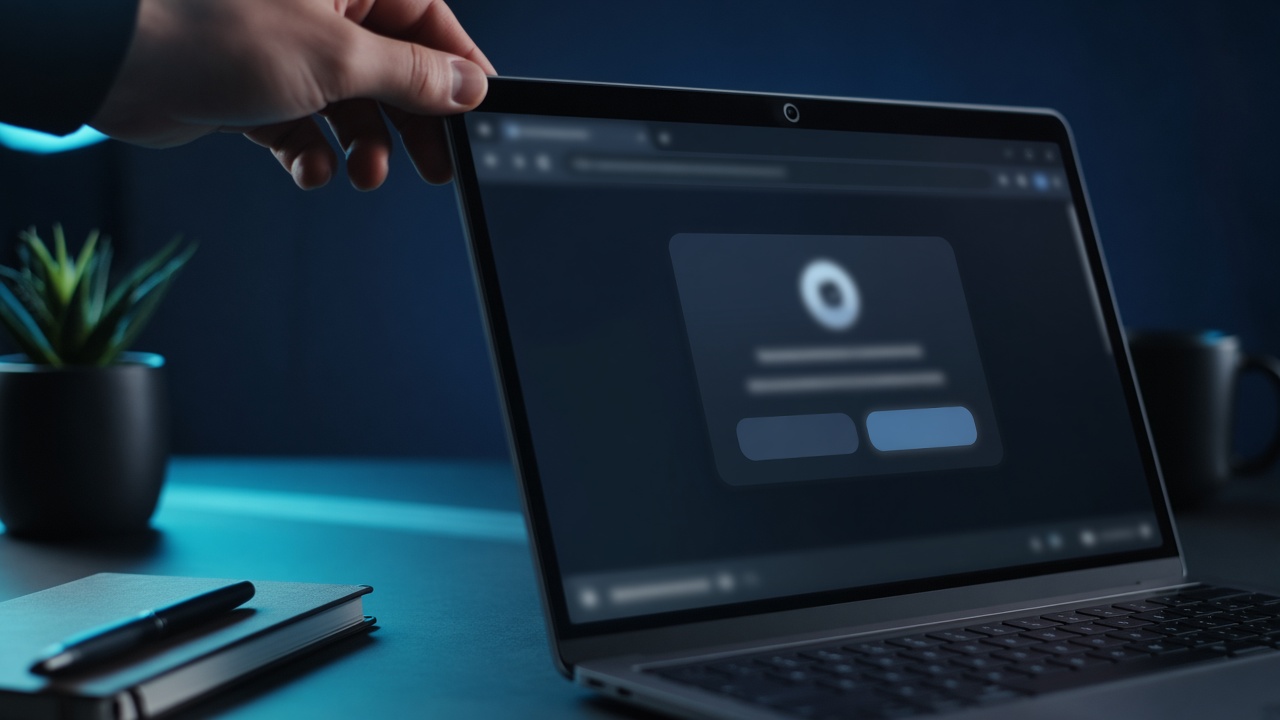
1. Allow Camera Access in Chrome, Edge, Firefox and Safari
Browsers ask once per site, and they remember a "Block". To allow camera access again, use the menu for your browser:
- Chrome. Click the lock or settings icon left of the address bar, choose Site settings, and set Camera to Allow. Reload.
- Edge. Click the lock icon, open Permissions for this site, and set Camera to Allow. Reload.
- Firefox. Click the crossed-out camera icon in the address bar, remove the blocked entry and reload. The page will ask again.
- Safari on a Mac. This is how to enable the camera on Safari: open Safari, then Settings, then Websites, then Camera, and set the site to Allow.
If the prompt never showed up at all, the setting is almost certainly this one.
Camera not working on Chrome? Start here, because Chrome causes more of these cases than any other browser. Open chrome://settings/content/camera, check that the right camera is selected and that this site is not in the Blocked list, then reload. If the camera is not working in any tab, jump to step 2.

2. Close the Other App That Is Using Your Camera
Most cameras can only be used by one program at a time. If a video-calling app, a screen recorder or a streaming tool is open in the background, it may have grabbed the camera, and your browser gets a black square. Quit those apps completely, not just the window, and close other browser tabs that might be using the camera.
The clue is the camera light. If it is on before you open the page, something else already has it.
3. Check That Your System Is Not Blocking the Browser
Even with the site allowed, the operating system can block the browser itself.
- Windows. Open Settings, Privacy and security, Camera. Turn on Camera access, and make sure the options for apps and desktop apps are on.
- macOS. Open System Settings, Privacy and Security, Camera, and switch on your browser. You may need to restart the browser.
Laptops with a sliding shutter or a function key that turns off the camera fool plenty of people. Check for a small camera icon on the keyboard.
4. Pick the Right Camera
If you have an external webcam, a virtual camera from a streaming app or a phone connected as a webcam, the browser may be pointing at the wrong one. The webcam test has a camera list, and so does any decent video chat. Choose the real camera and look for a picture.
5. Update Your Browser and Drivers
An old browser can miss newer camera features, and a driver that stopped working after a system update can make the camera vanish. Update the browser first, restart, then check for system updates. On Windows, look for the camera under Device Manager and use Update driver if it shows a warning icon.
6. Phone-Specific Fixes
- iPhone. In Safari, tap the aA icon in the address bar, open Website Settings and set Camera to Allow. Also check Settings, Safari, Camera.
- Android. In Chrome, tap the lock icon, open Permissions and switch Camera on. If it is still blocked, go to Settings, Apps, Chrome, Permissions, Camera.
- Both. Close other apps that use the camera, such as messaging apps with a video call open, and lift any camera cover.
7. Still Black? Run a Quick Test
Open the webcam test. It names the problem: blocked, no camera found, in use elsewhere or something else. If the picture works there, the camera is fine and the other site is the one with the problem. Then check the sound with the mic test, since the permission fixes are the same for the microphone.
If neither test can start the camera after steps one to six, restart the computer once. After that, the most likely cause is hardware, and a different browser or another device will tell you quickly.

Omegle Camera Not Working?
If you are searching for "Omegle camera not working", the camera is not the problem. Omegle closed in November 2023, and its chat no longer loads, so the camera has nothing to connect to. Omegle webcam chat explains what happened and what to use instead.
Once the camera works, how OmegaCam works shows what to do next.
Camera Not Working: FAQ
Why is my camera not working in Chrome but fine in other apps?
Chrome keeps its own camera permission for each site. If you clicked Block once, it remembers. Click the lock icon beside the address bar, open Site settings, set Camera to Allow, then reload the page.
Why is my camera black but the light is on?
The camera is working, but the picture is not reaching the page. Another app or tab may be using it, a privacy shutter may be closed, or the browser is pointed at a different camera. Close other video apps, check the shutter, then pick the camera from the list.
Why is my webcam not working in any browser?
If the webcam is not working in every browser, the cause is outside the browser. Another app may be holding the camera, a privacy switch or shutter may be off, or the system has blocked camera access. Work through steps 2 and 3 above, then restart the computer.
Do I need to reinstall my browser?
Almost never. Permissions, a second app holding the camera or a closed shutter explain nearly every case. Try those and a restart before you reinstall anything.
Fixed it? Say hello on camera chat online, free to start and no sign-up to try.